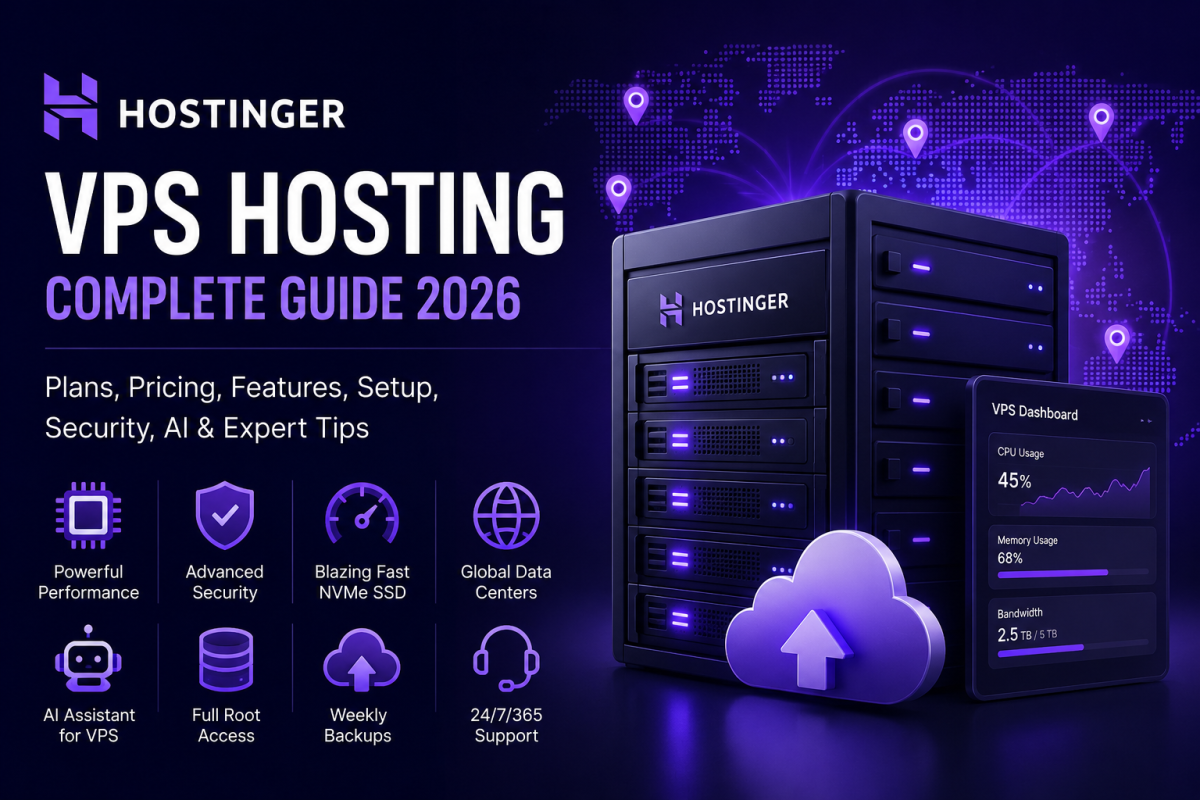
Hostinger VPS hosting is one of the most searched hosting options for website owners, developers, agencies, ecommerce businesses and creators who have outgrown normal shared hosting but do not want to jump directly into expensive dedicated servers. A VPS, or Virtual Private Server, gives you a private slice of server resources with more control than shared hosting. You can choose your operating system, install your own stack, run applications, host multiple sites, manage databases, deploy bots, use Docker, set up automation tools and configure security rules in a way that is not usually possible on basic shared hosting.
This guide is written for global readers who want a clear A-Z explanation before buying Hostinger VPS. We will cover the current KVM VPS plans, pricing, renewal logic, offers, major features, setup process, AI assistant, security checklist, data center choices, performance tips, service quality, who each plan is best for and what to avoid. Instead of only saying “Hostinger is good,” this guide explains where Hostinger VPS makes sense, where a beginner may struggle, and how to use it professionally after purchase. Pricing and plan names can change at any time, so always verify the latest details from the official Hostinger VPS pricing page before paying.

1. What Is Hostinger VPS Hosting?
Hostinger VPS hosting is a virtual server service built for users who want more control and resources than shared hosting. On shared hosting, many websites live inside a managed environment where most server decisions are handled by the provider. That is comfortable for beginners, but it becomes limiting when you need custom software, higher traffic handling, special background workers, private APIs, Docker containers, advanced caching, self-hosted tools, custom firewall rules or root-level control. VPS hosting solves that problem by giving you an isolated virtual machine with CPU, RAM, storage and bandwidth assigned to your plan.
Hostinger’s current VPS lineup uses KVM plans. KVM stands for Kernel-based Virtual Machine. In practical language, KVM virtualization gives strong isolation between users and lets each virtual server act much closer to a real independent server. You get full root access, choose an operating system, install applications and control the stack. That is why VPS hosting is popular for Laravel applications, WordPress sites with higher traffic, Node.js apps, Python APIs, ecommerce stores, game panels, automation platforms, private dashboards and AI-related tools.
The important point is this: Hostinger VPS is powerful, but it is not the same as beginner shared hosting. If you choose an unmanaged VPS, you become responsible for server updates, firewall rules, SSH security, application deployment, backups, SSL, monitoring and troubleshooting. Hostinger makes this easier through hPanel, one-click templates, backups, snapshots, support resources and its VPS AI assistant, but you should still understand the basics of Linux server management before moving serious production projects there.
2. Current Hostinger VPS Plans and Pricing Overview
At the time this guide was prepared, Hostinger’s public VPS pricing page showed four main KVM VPS plans: KVM 1, KVM 2, KVM 4 and KVM 8. The listed introductory rates were based on a 24-month term, while renewal rates were different. This is common in hosting: the attractive first price is usually promotional, and the renewal price is what you pay when the initial period ends. Always check the checkout page carefully because currency, tax, country, subscription length and active campaign may change the final price.
| Plan | Intro Price* | Renewal* | CPU | RAM | NVMe Storage | Bandwidth | Best For |
|---|---|---|---|---|---|---|---|
| KVM 1 | $6.49/mo | $11.99/mo | 1 vCPU | 4 GB | 50 GB | 4 TB | Testing, small apps, lightweight sites |
| KVM 2 | $8.99/mo | $14.99/mo | 2 vCPU | 8 GB | 100 GB | 8 TB | WordPress, Laravel, small production apps |
| KVM 4 | $12.99/mo | $28.99/mo | 4 vCPU | 16 GB | 200 GB | 16 TB | Agencies, ecommerce, busy websites |
| KVM 8 | $25.99/mo | $49.99/mo | 8 vCPU | 32 GB | 400 GB | 32 TB | Heavy apps, high traffic, multiple projects |
21. Practical Migration Plan from Shared Hosting to Hostinger VPS
Moving from shared hosting to VPS should be handled like a small project, not like a quick file copy. First, audit the current website. Note the PHP version, database size, storage size, cron jobs, email routing, DNS records, SSL status, cache plugin, custom redirects and any third-party integrations. Many migration problems happen because people only move files and database but forget cron jobs, email DNS, writable folders, environment variables or queue workers.
Second, prepare the VPS before touching the live domain. Install the correct stack, create the database, upload files, import the database and test using a temporary domain or hosts file entry. For Laravel, check the .env file, storage permissions, Composer dependencies, cache commands and queue worker. For WordPress, check wp-config.php, file permissions, permalinks, plugin compatibility and media paths. Only update the live DNS after the new site works.
Third, lower DNS TTL before migration if possible. This helps visitors move to the new server faster. After switching DNS, monitor logs, checkout forms, contact forms, login pages, admin panels and payment callbacks. Keep the old hosting active for a few days as a fallback. A professional migration is not finished when the homepage loads; it is finished when every important function works.
22. Email Hosting Warning: Do Not Treat VPS Like Shared Email
Many beginners think a VPS should automatically handle business email. Technically, you can run a mail server on a VPS, but it is one of the most difficult services to manage well. Deliverability, spam filtering, reverse DNS, SPF, DKIM, DMARC, blacklists and abuse handling can become complicated. For most website owners, it is better to use professional email hosting or transactional email providers instead of self-hosting email on the VPS.
Use the VPS for websites, applications and databases. Use a trusted email service for inboxes and a transactional provider for contact forms, password resets and order emails. This keeps your server cleaner and reduces the chance that normal website problems affect email deliverability. If you still want to run email on your VPS, study mail server security and reputation carefully before doing it for a real business.
23. SEO Benefits and Limits of VPS Hosting
A VPS can help SEO indirectly by improving speed, uptime and technical reliability. Faster Time to First Byte, stable server response and better caching can improve user experience. A VPS also lets you configure redirects, compression, headers, cron jobs and image processing more carefully. However, VPS itself is not an SEO magic button. Google does not rank a site higher simply because it is on a VPS. Content quality, search intent, backlinks, internal linking, schema, mobile usability and page experience still matter.
Use VPS control to support SEO properly. Configure HTTPS. Make sure the site has no mixed content. Enable compression. Serve optimized images. Use a CDN for global visitors. Avoid 500 errors during traffic spikes. Keep sitemap and robots.txt accessible. Monitor 404s and redirects. If you host multiple sites on one VPS, keep each site isolated enough that one broken project does not hurt all others.
24. Cost Planning: What You May Pay Beyond the VPS
The VPS plan is not always the full cost. You may need a domain, premium DNS, email hosting, paid control panel, backup storage, CDN, security tools, monitoring tools, developer help, migration service or premium software licenses. Some users choose free open-source tools and keep costs low. Others pay for convenience. There is nothing wrong with either approach as long as you calculate the real monthly cost before committing.
If you are building a business website, budget for maintenance. A cheap VPS with no maintenance can become expensive when it breaks at the wrong time. If you cannot maintain Linux yourself, include a monthly admin budget or choose managed hosting. If you are a developer, invest time in automation scripts, monitoring and documentation. The more repeatable your server process is, the less stressful future projects become.
25. Smart Tricks for Better VPS Management
Use a password manager for server credentials and hPanel login. Store SSH keys safely. Keep a private documentation file with installation steps, domain DNS, database names, cron jobs and backup locations. Use Git for code deployments instead of editing production files manually. Create a staging environment for important websites. Use logs instead of guessing. Take snapshots before major updates. Set uptime monitoring from a third-party service. Review disk usage monthly. Delete old logs, failed backup files and unused Docker images.
For security, create separate users for separate projects when possible. Do not give every freelancer root access. Use SSH keys that can be revoked. Keep database users limited to the permissions they need. Never store production secrets in public repositories. Keep .env files private. If you use Cloudflare, enable sensible firewall and caching rules but do not hide server security problems behind CDN alone.
26. Best Final Buying Recommendation
For most serious beginners, KVM 2 is the safest starting point because it balances cost and resources. For a growing affiliate website, WooCommerce site, agency project or Laravel application, KVM 4 is a more comfortable long-term option. KVM 1 is fine for testing and small projects, but it can feel limited if traffic or background tasks grow. KVM 8 is strong for heavy workloads but should be chosen when there is a real need, not just because bigger sounds better.
The best Hostinger VPS plan is the one that gives your project enough headroom without wasting budget. Start with a realistic plan, monitor usage and upgrade when data proves you need more. Combine Hostinger’s built-in features with disciplined server management: secure SSH, firewall, updates, SSL, backups, snapshots, off-server storage, monitoring and clear documentation. If you follow that approach, Hostinger VPS can become a reliable base for professional websites, apps and online businesses.
*Prices are based on the official Hostinger pricing information available during research and can change by region, subscription length, tax and promotion. Always verify the final checkout total before purchase.
For many users, KVM 2 is the practical starting point because 8 GB RAM gives more breathing room than the smallest plan. KVM 1 can be good for testing, learning Linux, staging websites or running a lightweight personal project, but production users often appreciate the extra CPU and memory of KVM 2 or KVM 4. KVM 4 is the more comfortable choice for growing websites, agencies, WooCommerce stores, several WordPress installs, Laravel projects with queues, or heavier database usage. KVM 8 is for users who already know they need more capacity.
3. Why Hostinger VPS Can Be a Strong Choice
Hostinger VPS is popular because it tries to combine price, resources and usability. Many VPS providers are either cheap but difficult, or powerful but expensive, or beginner-friendly but too limited. Hostinger’s advantage is that it provides KVM resources, NVMe storage, a familiar hPanel dashboard, one-click deployments, weekly backups, snapshots, firewall tools, 24/7 support access and an AI assistant in a package that is easier for non-enterprise users to approach.
The official Hostinger VPS pages list features such as AMD EPYC processors, NVMe SSD storage, 1 Gbps network speed, public API, free weekly backups, firewall management, AI assistant powered by MCP and a 99.9% uptime guarantee. For a buyer, these details matter because VPS performance is not only about the headline CPU number. Storage speed affects database queries and file operations. Network speed affects large transfers and user response time. Backups and snapshots protect against mistakes. A firewall reduces unnecessary exposure. API access helps automation. AI assistance helps when you are stuck on setup or server maintenance.
Another reason Hostinger VPS feels attractive is the upgrade path. A beginner can start with KVM 1 or KVM 2, then move to a larger plan when traffic grows. This is better than overpaying from day one. However, serious users should plan their resources honestly. Moving from shared hosting to VPS does not automatically make a slow website fast. You still need caching, optimized images, efficient database queries, a clean application stack and good configuration.

4. Who Should Use Hostinger VPS?
Hostinger VPS is best for users who need server control and are willing to manage, learn or outsource technical maintenance. If you run a simple blog and do not want to touch Linux commands, managed WordPress hosting or cloud hosting may be easier. But if you need root access, custom software, dedicated resources and flexibility, VPS becomes more attractive.
- Developers: Host Laravel, Node.js, Python, Django, Flask, APIs, Git deployments, staging environments and test servers.
- WordPress site owners: Run high-traffic WordPress sites with optimized Nginx, LiteSpeed, Redis, object caching and private server rules.
- Agencies: Manage multiple client websites, custom dashboards, web apps, CRM tools and private automations.
- Ecommerce businesses: Use more memory and CPU for WooCommerce, Magento-like stacks, inventory systems and payment callbacks.
- Automation users: Deploy n8n, Docker apps, bots, cron jobs, internal dashboards and self-hosted tools.
- AI experimenters: Run lightweight AI workflows, vector databases, private tools, RAG apps, automation agents and dashboards, while understanding resource limits.
The wrong user for VPS is someone who wants everything handled automatically without learning or paying for management. A VPS is like renting an apartment where you control the inside. That freedom is useful, but you must lock the door, maintain utilities and fix problems. If you ignore security updates, expose database ports, use weak passwords or forget backups, a VPS can become risky.
5. Hostinger VPS vs Shared Hosting vs Cloud Hosting
Many buyers are confused between shared hosting, VPS and cloud hosting. Shared hosting is usually the cheapest and easiest. The provider manages the environment, and you use a panel to install WordPress or upload files. VPS gives more control but also more responsibility. Cloud hosting often sits in the middle: more power than shared hosting, more managed convenience than VPS, but usually less root-level flexibility than an unmanaged VPS.
| Hosting Type | Best For | Main Benefit | Main Limitation |
|---|---|---|---|
| Shared Hosting | New blogs, small websites, beginners | Very easy and low cost | Limited control and shared resources |
| Cloud Hosting | Growing websites needing managed power | More resources with easier management | Less root-level flexibility than VPS |
| VPS Hosting | Developers, apps, agencies, custom stacks | Control, isolation and scalability | Needs server management knowledge |
| Dedicated Server | Very large workloads | Full physical server resources | Higher cost and more management |
21. Practical Migration Plan from Shared Hosting to Hostinger VPS
Moving from shared hosting to VPS should be handled like a small project, not like a quick file copy. First, audit the current website. Note the PHP version, database size, storage size, cron jobs, email routing, DNS records, SSL status, cache plugin, custom redirects and any third-party integrations. Many migration problems happen because people only move files and database but forget cron jobs, email DNS, writable folders, environment variables or queue workers.
Second, prepare the VPS before touching the live domain. Install the correct stack, create the database, upload files, import the database and test using a temporary domain or hosts file entry. For Laravel, check the .env file, storage permissions, Composer dependencies, cache commands and queue worker. For WordPress, check wp-config.php, file permissions, permalinks, plugin compatibility and media paths. Only update the live DNS after the new site works.
Third, lower DNS TTL before migration if possible. This helps visitors move to the new server faster. After switching DNS, monitor logs, checkout forms, contact forms, login pages, admin panels and payment callbacks. Keep the old hosting active for a few days as a fallback. A professional migration is not finished when the homepage loads; it is finished when every important function works.
22. Email Hosting Warning: Do Not Treat VPS Like Shared Email
Many beginners think a VPS should automatically handle business email. Technically, you can run a mail server on a VPS, but it is one of the most difficult services to manage well. Deliverability, spam filtering, reverse DNS, SPF, DKIM, DMARC, blacklists and abuse handling can become complicated. For most website owners, it is better to use professional email hosting or transactional email providers instead of self-hosting email on the VPS.
Use the VPS for websites, applications and databases. Use a trusted email service for inboxes and a transactional provider for contact forms, password resets and order emails. This keeps your server cleaner and reduces the chance that normal website problems affect email deliverability. If you still want to run email on your VPS, study mail server security and reputation carefully before doing it for a real business.
23. SEO Benefits and Limits of VPS Hosting
A VPS can help SEO indirectly by improving speed, uptime and technical reliability. Faster Time to First Byte, stable server response and better caching can improve user experience. A VPS also lets you configure redirects, compression, headers, cron jobs and image processing more carefully. However, VPS itself is not an SEO magic button. Google does not rank a site higher simply because it is on a VPS. Content quality, search intent, backlinks, internal linking, schema, mobile usability and page experience still matter.
Use VPS control to support SEO properly. Configure HTTPS. Make sure the site has no mixed content. Enable compression. Serve optimized images. Use a CDN for global visitors. Avoid 500 errors during traffic spikes. Keep sitemap and robots.txt accessible. Monitor 404s and redirects. If you host multiple sites on one VPS, keep each site isolated enough that one broken project does not hurt all others.
24. Cost Planning: What You May Pay Beyond the VPS
The VPS plan is not always the full cost. You may need a domain, premium DNS, email hosting, paid control panel, backup storage, CDN, security tools, monitoring tools, developer help, migration service or premium software licenses. Some users choose free open-source tools and keep costs low. Others pay for convenience. There is nothing wrong with either approach as long as you calculate the real monthly cost before committing.
If you are building a business website, budget for maintenance. A cheap VPS with no maintenance can become expensive when it breaks at the wrong time. If you cannot maintain Linux yourself, include a monthly admin budget or choose managed hosting. If you are a developer, invest time in automation scripts, monitoring and documentation. The more repeatable your server process is, the less stressful future projects become.
25. Smart Tricks for Better VPS Management
Use a password manager for server credentials and hPanel login. Store SSH keys safely. Keep a private documentation file with installation steps, domain DNS, database names, cron jobs and backup locations. Use Git for code deployments instead of editing production files manually. Create a staging environment for important websites. Use logs instead of guessing. Take snapshots before major updates. Set uptime monitoring from a third-party service. Review disk usage monthly. Delete old logs, failed backup files and unused Docker images.
For security, create separate users for separate projects when possible. Do not give every freelancer root access. Use SSH keys that can be revoked. Keep database users limited to the permissions they need. Never store production secrets in public repositories. Keep .env files private. If you use Cloudflare, enable sensible firewall and caching rules but do not hide server security problems behind CDN alone.
26. Best Final Buying Recommendation
For most serious beginners, KVM 2 is the safest starting point because it balances cost and resources. For a growing affiliate website, WooCommerce site, agency project or Laravel application, KVM 4 is a more comfortable long-term option. KVM 1 is fine for testing and small projects, but it can feel limited if traffic or background tasks grow. KVM 8 is strong for heavy workloads but should be chosen when there is a real need, not just because bigger sounds better.
The best Hostinger VPS plan is the one that gives your project enough headroom without wasting budget. Start with a realistic plan, monitor usage and upgrade when data proves you need more. Combine Hostinger’s built-in features with disciplined server management: secure SSH, firewall, updates, SSL, backups, snapshots, off-server storage, monitoring and clear documentation. If you follow that approach, Hostinger VPS can become a reliable base for professional websites, apps and online businesses.
If your website is new and receives low traffic, start with shared or managed hosting. If you need custom deployments or your site is becoming slow under real traffic, VPS is worth considering. If you want easier management but more resources than shared hosting, compare Hostinger cloud plans as well. The best choice depends on your skill level, not only your budget.
6. Data Center Locations and How to Choose
Data center location is more important than many beginners realize. If most of your visitors are in India, choosing an Asian data center can reduce latency. If most visitors are in Europe, a European location can feel faster. If your audience is in the United States, a North American data center is usually sensible. According to Hostinger’s support documentation, VPS locations include Europe, Asia and North America, with specific availability depending on the VPS setup screen. Hostinger also notes that VPS location is fixed after initial setup; if you want a different VPS location later, you may need to back up and reinstall the VPS on another data center.
The rule is simple: place your server close to the majority of users. If your audience is global, choose a central region and use a CDN for static assets. For example, a blog with readers from the USA, UK and Asia may choose a US or European data center plus Cloudflare CDN. An ecommerce store selling mostly to Bangladesh, India, Malaysia and Indonesia may prefer a nearby Asian data center if available. A business serving Germany, France and the UK should normally choose Europe.
| Audience Region | Suggested Location Logic | Extra Tip |
|---|---|---|
| USA / Canada | Choose a North American VPS location if available | Use CDN for international visitors |
| Europe / UK | Choose France, Germany, Lithuania or UK options where available | Good for EU-focused sites and apps |
| South Asia / Southeast Asia | Choose India, Indonesia or Malaysia if shown in hPanel | Test latency from target countries |
| Worldwide audience | Choose closest to your biggest traffic source | CDN and caching become essential |
21. Practical Migration Plan from Shared Hosting to Hostinger VPS
Moving from shared hosting to VPS should be handled like a small project, not like a quick file copy. First, audit the current website. Note the PHP version, database size, storage size, cron jobs, email routing, DNS records, SSL status, cache plugin, custom redirects and any third-party integrations. Many migration problems happen because people only move files and database but forget cron jobs, email DNS, writable folders, environment variables or queue workers.
Second, prepare the VPS before touching the live domain. Install the correct stack, create the database, upload files, import the database and test using a temporary domain or hosts file entry. For Laravel, check the .env file, storage permissions, Composer dependencies, cache commands and queue worker. For WordPress, check wp-config.php, file permissions, permalinks, plugin compatibility and media paths. Only update the live DNS after the new site works.
Third, lower DNS TTL before migration if possible. This helps visitors move to the new server faster. After switching DNS, monitor logs, checkout forms, contact forms, login pages, admin panels and payment callbacks. Keep the old hosting active for a few days as a fallback. A professional migration is not finished when the homepage loads; it is finished when every important function works.
22. Email Hosting Warning: Do Not Treat VPS Like Shared Email
Many beginners think a VPS should automatically handle business email. Technically, you can run a mail server on a VPS, but it is one of the most difficult services to manage well. Deliverability, spam filtering, reverse DNS, SPF, DKIM, DMARC, blacklists and abuse handling can become complicated. For most website owners, it is better to use professional email hosting or transactional email providers instead of self-hosting email on the VPS.
Use the VPS for websites, applications and databases. Use a trusted email service for inboxes and a transactional provider for contact forms, password resets and order emails. This keeps your server cleaner and reduces the chance that normal website problems affect email deliverability. If you still want to run email on your VPS, study mail server security and reputation carefully before doing it for a real business.
23. SEO Benefits and Limits of VPS Hosting
A VPS can help SEO indirectly by improving speed, uptime and technical reliability. Faster Time to First Byte, stable server response and better caching can improve user experience. A VPS also lets you configure redirects, compression, headers, cron jobs and image processing more carefully. However, VPS itself is not an SEO magic button. Google does not rank a site higher simply because it is on a VPS. Content quality, search intent, backlinks, internal linking, schema, mobile usability and page experience still matter.
Use VPS control to support SEO properly. Configure HTTPS. Make sure the site has no mixed content. Enable compression. Serve optimized images. Use a CDN for global visitors. Avoid 500 errors during traffic spikes. Keep sitemap and robots.txt accessible. Monitor 404s and redirects. If you host multiple sites on one VPS, keep each site isolated enough that one broken project does not hurt all others.
24. Cost Planning: What You May Pay Beyond the VPS
The VPS plan is not always the full cost. You may need a domain, premium DNS, email hosting, paid control panel, backup storage, CDN, security tools, monitoring tools, developer help, migration service or premium software licenses. Some users choose free open-source tools and keep costs low. Others pay for convenience. There is nothing wrong with either approach as long as you calculate the real monthly cost before committing.
If you are building a business website, budget for maintenance. A cheap VPS with no maintenance can become expensive when it breaks at the wrong time. If you cannot maintain Linux yourself, include a monthly admin budget or choose managed hosting. If you are a developer, invest time in automation scripts, monitoring and documentation. The more repeatable your server process is, the less stressful future projects become.
25. Smart Tricks for Better VPS Management
Use a password manager for server credentials and hPanel login. Store SSH keys safely. Keep a private documentation file with installation steps, domain DNS, database names, cron jobs and backup locations. Use Git for code deployments instead of editing production files manually. Create a staging environment for important websites. Use logs instead of guessing. Take snapshots before major updates. Set uptime monitoring from a third-party service. Review disk usage monthly. Delete old logs, failed backup files and unused Docker images.
For security, create separate users for separate projects when possible. Do not give every freelancer root access. Use SSH keys that can be revoked. Keep database users limited to the permissions they need. Never store production secrets in public repositories. Keep .env files private. If you use Cloudflare, enable sensible firewall and caching rules but do not hide server security problems behind CDN alone.
26. Best Final Buying Recommendation
For most serious beginners, KVM 2 is the safest starting point because it balances cost and resources. For a growing affiliate website, WooCommerce site, agency project or Laravel application, KVM 4 is a more comfortable long-term option. KVM 1 is fine for testing and small projects, but it can feel limited if traffic or background tasks grow. KVM 8 is strong for heavy workloads but should be chosen when there is a real need, not just because bigger sounds better.
The best Hostinger VPS plan is the one that gives your project enough headroom without wasting budget. Start with a realistic plan, monitor usage and upgrade when data proves you need more. Combine Hostinger’s built-in features with disciplined server management: secure SSH, firewall, updates, SSL, backups, snapshots, off-server storage, monitoring and clear documentation. If you follow that approach, Hostinger VPS can become a reliable base for professional websites, apps and online businesses.
7. How to Choose the Right Hostinger VPS Plan
The safest way to choose a VPS plan is to start from your workload, not from the discount. A plan is only cheap if it handles the job without constant downtime or upgrades. Start by estimating your application type, visitor volume, database size, background jobs, file storage, email sending needs, media usage and growth expectation. A static website needs very little. A WordPress blog with caching may run well on modest resources. A WooCommerce store with many plugins, logged-in users and admin activity needs more memory and CPU. A Laravel app with queues, Redis, WebSocket, cron jobs and API calls needs planning.
KVM 1 is good for learning, staging, testing, small personal sites, low-traffic APIs and lightweight bots. It gives you enough RAM to experiment without being too tiny, but 1 vCPU can become a bottleneck under heavier traffic. KVM 2 is a better entry point for real production because 2 vCPU and 8 GB RAM allow more comfortable web server, database and caching setup. KVM 4 is the best balanced plan for serious sites because 4 vCPU, 16 GB RAM and 200 GB NVMe storage give room for growth. KVM 8 is for users running several busy projects, heavy applications, multiple containers or resource-intensive services.
Recommended Plan by Use Case
| Use Case | Recommended Plan | Reason |
|---|---|---|
| Learning Linux or testing server commands | KVM 1 | Low cost and enough for practice |
| Small WordPress site with caching | KVM 1 or KVM 2 | KVM 2 gives better headroom |
| Laravel app with database and queue | KVM 2 or KVM 4 | More RAM and CPU help workers and database |
| Agency hosting multiple client websites | KVM 4 | Balanced resources and storage |
| WooCommerce or busy ecommerce | KVM 4 or KVM 8 | Checkout, database and admin actions need headroom |
| Docker apps, automation and internal tools | KVM 2, KVM 4 or KVM 8 | Depends on number of containers and memory usage |
21. Practical Migration Plan from Shared Hosting to Hostinger VPS
Moving from shared hosting to VPS should be handled like a small project, not like a quick file copy. First, audit the current website. Note the PHP version, database size, storage size, cron jobs, email routing, DNS records, SSL status, cache plugin, custom redirects and any third-party integrations. Many migration problems happen because people only move files and database but forget cron jobs, email DNS, writable folders, environment variables or queue workers.
Second, prepare the VPS before touching the live domain. Install the correct stack, create the database, upload files, import the database and test using a temporary domain or hosts file entry. For Laravel, check the .env file, storage permissions, Composer dependencies, cache commands and queue worker. For WordPress, check wp-config.php, file permissions, permalinks, plugin compatibility and media paths. Only update the live DNS after the new site works.
Third, lower DNS TTL before migration if possible. This helps visitors move to the new server faster. After switching DNS, monitor logs, checkout forms, contact forms, login pages, admin panels and payment callbacks. Keep the old hosting active for a few days as a fallback. A professional migration is not finished when the homepage loads; it is finished when every important function works.
22. Email Hosting Warning: Do Not Treat VPS Like Shared Email
Many beginners think a VPS should automatically handle business email. Technically, you can run a mail server on a VPS, but it is one of the most difficult services to manage well. Deliverability, spam filtering, reverse DNS, SPF, DKIM, DMARC, blacklists and abuse handling can become complicated. For most website owners, it is better to use professional email hosting or transactional email providers instead of self-hosting email on the VPS.
Use the VPS for websites, applications and databases. Use a trusted email service for inboxes and a transactional provider for contact forms, password resets and order emails. This keeps your server cleaner and reduces the chance that normal website problems affect email deliverability. If you still want to run email on your VPS, study mail server security and reputation carefully before doing it for a real business.
23. SEO Benefits and Limits of VPS Hosting
A VPS can help SEO indirectly by improving speed, uptime and technical reliability. Faster Time to First Byte, stable server response and better caching can improve user experience. A VPS also lets you configure redirects, compression, headers, cron jobs and image processing more carefully. However, VPS itself is not an SEO magic button. Google does not rank a site higher simply because it is on a VPS. Content quality, search intent, backlinks, internal linking, schema, mobile usability and page experience still matter.
Use VPS control to support SEO properly. Configure HTTPS. Make sure the site has no mixed content. Enable compression. Serve optimized images. Use a CDN for global visitors. Avoid 500 errors during traffic spikes. Keep sitemap and robots.txt accessible. Monitor 404s and redirects. If you host multiple sites on one VPS, keep each site isolated enough that one broken project does not hurt all others.
24. Cost Planning: What You May Pay Beyond the VPS
The VPS plan is not always the full cost. You may need a domain, premium DNS, email hosting, paid control panel, backup storage, CDN, security tools, monitoring tools, developer help, migration service or premium software licenses. Some users choose free open-source tools and keep costs low. Others pay for convenience. There is nothing wrong with either approach as long as you calculate the real monthly cost before committing.
If you are building a business website, budget for maintenance. A cheap VPS with no maintenance can become expensive when it breaks at the wrong time. If you cannot maintain Linux yourself, include a monthly admin budget or choose managed hosting. If you are a developer, invest time in automation scripts, monitoring and documentation. The more repeatable your server process is, the less stressful future projects become.
25. Smart Tricks for Better VPS Management
Use a password manager for server credentials and hPanel login. Store SSH keys safely. Keep a private documentation file with installation steps, domain DNS, database names, cron jobs and backup locations. Use Git for code deployments instead of editing production files manually. Create a staging environment for important websites. Use logs instead of guessing. Take snapshots before major updates. Set uptime monitoring from a third-party service. Review disk usage monthly. Delete old logs, failed backup files and unused Docker images.
For security, create separate users for separate projects when possible. Do not give every freelancer root access. Use SSH keys that can be revoked. Keep database users limited to the permissions they need. Never store production secrets in public repositories. Keep .env files private. If you use Cloudflare, enable sensible firewall and caching rules but do not hide server security problems behind CDN alone.
26. Best Final Buying Recommendation
For most serious beginners, KVM 2 is the safest starting point because it balances cost and resources. For a growing affiliate website, WooCommerce site, agency project or Laravel application, KVM 4 is a more comfortable long-term option. KVM 1 is fine for testing and small projects, but it can feel limited if traffic or background tasks grow. KVM 8 is strong for heavy workloads but should be chosen when there is a real need, not just because bigger sounds better.
The best Hostinger VPS plan is the one that gives your project enough headroom without wasting budget. Start with a realistic plan, monitor usage and upgrade when data proves you need more. Combine Hostinger’s built-in features with disciplined server management: secure SSH, firewall, updates, SSL, backups, snapshots, off-server storage, monitoring and clear documentation. If you follow that approach, Hostinger VPS can become a reliable base for professional websites, apps and online businesses.
8. Setup System: Step-by-Step VPS Launch
Setting up a Hostinger VPS is usually straightforward, but doing it in the right order prevents future problems. The basic flow is: buy a plan, choose a location, select an operating system or template, create secure access, point your domain, install your web stack, add SSL, configure firewall, create backups and monitor the server. Hostinger has a detailed VPS setup tutorial, and beginners should keep the official Hostinger VPS setup guide open during their first server launch.
Screenshot-style walkthrough: first VPS setup
- Open Hostinger hPanel and select your VPS plan.
- Choose the server location closest to your main audience.
- Select Ubuntu LTS, Debian, AlmaLinux, CyberPanel, Docker or another available template based on your project.
- Create or upload SSH keys instead of relying only on password login.
- Copy your server IP address and point your domain DNS A record to it.
- Install your web server stack: Nginx, Apache, OpenLiteSpeed, PHP, Node.js, MariaDB, PostgreSQL or Docker depending on your app.
- Enable firewall rules for SSH, HTTP and HTTPS only.
- Install SSL and test the website on HTTPS.
- Create a manual snapshot before major changes.
21. Practical Migration Plan from Shared Hosting to Hostinger VPS
Moving from shared hosting to VPS should be handled like a small project, not like a quick file copy. First, audit the current website. Note the PHP version, database size, storage size, cron jobs, email routing, DNS records, SSL status, cache plugin, custom redirects and any third-party integrations. Many migration problems happen because people only move files and database but forget cron jobs, email DNS, writable folders, environment variables or queue workers.
Second, prepare the VPS before touching the live domain. Install the correct stack, create the database, upload files, import the database and test using a temporary domain or hosts file entry. For Laravel, check the .env file, storage permissions, Composer dependencies, cache commands and queue worker. For WordPress, check wp-config.php, file permissions, permalinks, plugin compatibility and media paths. Only update the live DNS after the new site works.
Third, lower DNS TTL before migration if possible. This helps visitors move to the new server faster. After switching DNS, monitor logs, checkout forms, contact forms, login pages, admin panels and payment callbacks. Keep the old hosting active for a few days as a fallback. A professional migration is not finished when the homepage loads; it is finished when every important function works.
22. Email Hosting Warning: Do Not Treat VPS Like Shared Email
Many beginners think a VPS should automatically handle business email. Technically, you can run a mail server on a VPS, but it is one of the most difficult services to manage well. Deliverability, spam filtering, reverse DNS, SPF, DKIM, DMARC, blacklists and abuse handling can become complicated. For most website owners, it is better to use professional email hosting or transactional email providers instead of self-hosting email on the VPS.
Use the VPS for websites, applications and databases. Use a trusted email service for inboxes and a transactional provider for contact forms, password resets and order emails. This keeps your server cleaner and reduces the chance that normal website problems affect email deliverability. If you still want to run email on your VPS, study mail server security and reputation carefully before doing it for a real business.
23. SEO Benefits and Limits of VPS Hosting
A VPS can help SEO indirectly by improving speed, uptime and technical reliability. Faster Time to First Byte, stable server response and better caching can improve user experience. A VPS also lets you configure redirects, compression, headers, cron jobs and image processing more carefully. However, VPS itself is not an SEO magic button. Google does not rank a site higher simply because it is on a VPS. Content quality, search intent, backlinks, internal linking, schema, mobile usability and page experience still matter.
Use VPS control to support SEO properly. Configure HTTPS. Make sure the site has no mixed content. Enable compression. Serve optimized images. Use a CDN for global visitors. Avoid 500 errors during traffic spikes. Keep sitemap and robots.txt accessible. Monitor 404s and redirects. If you host multiple sites on one VPS, keep each site isolated enough that one broken project does not hurt all others.
24. Cost Planning: What You May Pay Beyond the VPS
The VPS plan is not always the full cost. You may need a domain, premium DNS, email hosting, paid control panel, backup storage, CDN, security tools, monitoring tools, developer help, migration service or premium software licenses. Some users choose free open-source tools and keep costs low. Others pay for convenience. There is nothing wrong with either approach as long as you calculate the real monthly cost before committing.
If you are building a business website, budget for maintenance. A cheap VPS with no maintenance can become expensive when it breaks at the wrong time. If you cannot maintain Linux yourself, include a monthly admin budget or choose managed hosting. If you are a developer, invest time in automation scripts, monitoring and documentation. The more repeatable your server process is, the less stressful future projects become.
25. Smart Tricks for Better VPS Management
Use a password manager for server credentials and hPanel login. Store SSH keys safely. Keep a private documentation file with installation steps, domain DNS, database names, cron jobs and backup locations. Use Git for code deployments instead of editing production files manually. Create a staging environment for important websites. Use logs instead of guessing. Take snapshots before major updates. Set uptime monitoring from a third-party service. Review disk usage monthly. Delete old logs, failed backup files and unused Docker images.
For security, create separate users for separate projects when possible. Do not give every freelancer root access. Use SSH keys that can be revoked. Keep database users limited to the permissions they need. Never store production secrets in public repositories. Keep .env files private. If you use Cloudflare, enable sensible firewall and caching rules but do not hide server security problems behind CDN alone.
26. Best Final Buying Recommendation
For most serious beginners, KVM 2 is the safest starting point because it balances cost and resources. For a growing affiliate website, WooCommerce site, agency project or Laravel application, KVM 4 is a more comfortable long-term option. KVM 1 is fine for testing and small projects, but it can feel limited if traffic or background tasks grow. KVM 8 is strong for heavy workloads but should be chosen when there is a real need, not just because bigger sounds better.
The best Hostinger VPS plan is the one that gives your project enough headroom without wasting budget. Start with a realistic plan, monitor usage and upgrade when data proves you need more. Combine Hostinger’s built-in features with disciplined server management: secure SSH, firewall, updates, SSL, backups, snapshots, off-server storage, monitoring and clear documentation. If you follow that approach, Hostinger VPS can become a reliable base for professional websites, apps and online businesses.
For a WordPress website, a beginner may choose an OS with panel or application template so the basic software stack is easier. For a Laravel app, many developers prefer Ubuntu LTS with Nginx, PHP-FPM, Composer, MySQL or MariaDB, Redis, Supervisor and Certbot. For Docker users, a Docker-ready template can save time. The best template is the one you understand well enough to update later.
9. Domain, DNS and SSL Setup
After launching the VPS, you need to connect your domain. In most cases, you add an A record pointing your domain or subdomain to the VPS IP address. For example, example.com and www.example.com can point to the same IP. If you use Cloudflare or another DNS provider, the DNS record is edited there. DNS propagation can take minutes or hours, so do not panic if it does not work instantly.
SSL is essential. A website without HTTPS looks unprofessional, weakens trust and may create browser warnings. Let’s Encrypt provides free TLS certificates, and Certbot is the common tool for installing and renewing them on Linux servers. The official Let’s Encrypt getting started guide recommends Certbot for many users who manage their own server. For Nginx, Certbot can usually configure HTTPS and renewal automatically if your domain already points to the server correctly.
Use this basic logic: point DNS first, test HTTP, then install SSL. If you install SSL before DNS reaches the VPS, certificate validation can fail. Also keep ports 80 and 443 open in your firewall so Let’s Encrypt can verify the domain and visitors can access your website.
10. Security: The Part You Must Not Skip
VPS security is not optional. The moment your server is online, bots will scan it. Some will try SSH login, common ports, outdated software, exposed databases and weak admin panels. A new VPS with default settings can be safe enough for a short moment, but production use requires hardening. Ubuntu’s server documentation includes security topics for user management, firewalls, AppArmor and OpenSSH, and it is a good reference for users running Ubuntu servers. CISA also recommends basic defenses such as strong authentication, backups and good cyber hygiene for organizations.
Start with SSH security. Use SSH keys, create a non-root sudo user, disable password login if you know what you are doing, and avoid exposing root login. Change the SSH port only as an extra noise-reduction step; it is not a replacement for keys and firewall rules. Use UFW or another firewall to allow only necessary ports. A typical web server may need SSH, HTTP and HTTPS. Do not expose MySQL, Redis, PostgreSQL, MongoDB, Elasticsearch or admin panels to the public internet unless you fully understand the risk.
| Security Task | Why It Matters | Beginner Action |
|---|---|---|
| Use SSH keys | Harder to brute-force than passwords | Generate an Ed25519 key and upload public key |
| Configure firewall | Reduces exposed services | Allow SSH, 80 and 443 only at first |
| Update packages | Fixes known vulnerabilities | Run updates regularly or configure unattended upgrades |
| Enable backups | Protects from mistakes and attacks | Use Hostinger backups plus off-server backup |
| Install SSL | Encrypts traffic and builds trust | Use Certbot / Let’s Encrypt |
| Monitor logs | Finds suspicious activity early | Check auth, web server and application logs weekly |
21. Practical Migration Plan from Shared Hosting to Hostinger VPS
Moving from shared hosting to VPS should be handled like a small project, not like a quick file copy. First, audit the current website. Note the PHP version, database size, storage size, cron jobs, email routing, DNS records, SSL status, cache plugin, custom redirects and any third-party integrations. Many migration problems happen because people only move files and database but forget cron jobs, email DNS, writable folders, environment variables or queue workers.
Second, prepare the VPS before touching the live domain. Install the correct stack, create the database, upload files, import the database and test using a temporary domain or hosts file entry. For Laravel, check the .env file, storage permissions, Composer dependencies, cache commands and queue worker. For WordPress, check wp-config.php, file permissions, permalinks, plugin compatibility and media paths. Only update the live DNS after the new site works.
Third, lower DNS TTL before migration if possible. This helps visitors move to the new server faster. After switching DNS, monitor logs, checkout forms, contact forms, login pages, admin panels and payment callbacks. Keep the old hosting active for a few days as a fallback. A professional migration is not finished when the homepage loads; it is finished when every important function works.
22. Email Hosting Warning: Do Not Treat VPS Like Shared Email
Many beginners think a VPS should automatically handle business email. Technically, you can run a mail server on a VPS, but it is one of the most difficult services to manage well. Deliverability, spam filtering, reverse DNS, SPF, DKIM, DMARC, blacklists and abuse handling can become complicated. For most website owners, it is better to use professional email hosting or transactional email providers instead of self-hosting email on the VPS.
Use the VPS for websites, applications and databases. Use a trusted email service for inboxes and a transactional provider for contact forms, password resets and order emails. This keeps your server cleaner and reduces the chance that normal website problems affect email deliverability. If you still want to run email on your VPS, study mail server security and reputation carefully before doing it for a real business.
23. SEO Benefits and Limits of VPS Hosting
A VPS can help SEO indirectly by improving speed, uptime and technical reliability. Faster Time to First Byte, stable server response and better caching can improve user experience. A VPS also lets you configure redirects, compression, headers, cron jobs and image processing more carefully. However, VPS itself is not an SEO magic button. Google does not rank a site higher simply because it is on a VPS. Content quality, search intent, backlinks, internal linking, schema, mobile usability and page experience still matter.
Use VPS control to support SEO properly. Configure HTTPS. Make sure the site has no mixed content. Enable compression. Serve optimized images. Use a CDN for global visitors. Avoid 500 errors during traffic spikes. Keep sitemap and robots.txt accessible. Monitor 404s and redirects. If you host multiple sites on one VPS, keep each site isolated enough that one broken project does not hurt all others.
24. Cost Planning: What You May Pay Beyond the VPS
The VPS plan is not always the full cost. You may need a domain, premium DNS, email hosting, paid control panel, backup storage, CDN, security tools, monitoring tools, developer help, migration service or premium software licenses. Some users choose free open-source tools and keep costs low. Others pay for convenience. There is nothing wrong with either approach as long as you calculate the real monthly cost before committing.
If you are building a business website, budget for maintenance. A cheap VPS with no maintenance can become expensive when it breaks at the wrong time. If you cannot maintain Linux yourself, include a monthly admin budget or choose managed hosting. If you are a developer, invest time in automation scripts, monitoring and documentation. The more repeatable your server process is, the less stressful future projects become.
25. Smart Tricks for Better VPS Management
Use a password manager for server credentials and hPanel login. Store SSH keys safely. Keep a private documentation file with installation steps, domain DNS, database names, cron jobs and backup locations. Use Git for code deployments instead of editing production files manually. Create a staging environment for important websites. Use logs instead of guessing. Take snapshots before major updates. Set uptime monitoring from a third-party service. Review disk usage monthly. Delete old logs, failed backup files and unused Docker images.
For security, create separate users for separate projects when possible. Do not give every freelancer root access. Use SSH keys that can be revoked. Keep database users limited to the permissions they need. Never store production secrets in public repositories. Keep .env files private. If you use Cloudflare, enable sensible firewall and caching rules but do not hide server security problems behind CDN alone.
26. Best Final Buying Recommendation
For most serious beginners, KVM 2 is the safest starting point because it balances cost and resources. For a growing affiliate website, WooCommerce site, agency project or Laravel application, KVM 4 is a more comfortable long-term option. KVM 1 is fine for testing and small projects, but it can feel limited if traffic or background tasks grow. KVM 8 is strong for heavy workloads but should be chosen when there is a real need, not just because bigger sounds better.
The best Hostinger VPS plan is the one that gives your project enough headroom without wasting budget. Start with a realistic plan, monitor usage and upgrade when data proves you need more. Combine Hostinger’s built-in features with disciplined server management: secure SSH, firewall, updates, SSL, backups, snapshots, off-server storage, monitoring and clear documentation. If you follow that approach, Hostinger VPS can become a reliable base for professional websites, apps and online businesses.
Do not install random scripts from Telegram, forums or unknown blogs without reading them. Many “one-click speed optimization” commands disable security, change permissions badly or install outdated packages. If you copy commands, understand what they do. Take a snapshot before running major scripts. Keep your control panel, CMS, plugins, themes, PHP version and database updated. Security is not one setting; it is a habit.
11. Backups and Snapshots: Your Recovery Plan
Hostinger includes weekly VPS backups and manual snapshots on current plans. That is a strong benefit, but it should not be your only backup plan for important projects. A good production backup strategy has at least two layers: provider-level backups and off-server backups. Provider backups help when you make a mistake or need quick recovery. Off-server backups protect you if the account, data center, server image or provider access has a problem.
For websites, back up files and databases separately. For WordPress, a backup should include uploads, themes, plugins and the database. For Laravel, include code repository, environment file, storage folder, database and uploaded files. For Docker apps, know where volumes live. For databases, test restoration. A backup that has never been restored is only a hope, not a proven recovery plan.
Use snapshots before risky updates. For example, before upgrading PHP, changing Nginx config, installing a new panel, moving databases or running a migration, take a snapshot. If the server breaks, revert faster. But do not confuse snapshots with long-term backups. Snapshots are great for short-term rollback; scheduled backups are better for disaster recovery.
12. Hostinger AI Assistant: How It Helps
Hostinger promotes a VPS AI assistant called Kodee. The official VPS page describes it as an AI-powered VPS agent that can help answer server management questions and execute certain tasks through chat. Hostinger’s tutorial examples show users asking Kodee about monitoring, alerting, security automation, backup schedules, snapshots, firewall rules, troubleshooting, diagnostics and performance optimization. This can be very useful for beginners who understand the goal but do not know the exact command or menu path.
The AI assistant does not replace responsibility. You should still check commands before running them, especially if they modify firewall rules, delete files, reinstall software or restart services. Treat AI as a skilled helper, not as magic. The best prompts are specific: mention your operating system, web server, PHP version, database and what you want to achieve. Instead of asking “make my VPS fast,” ask “I am using Ubuntu 24.04, Nginx, PHP-FPM and MariaDB for a Laravel site. What should I check first to reduce TTFB?”
Useful Kodee prompt examples
- Check the current CPU, memory and disk usage of my VPS and explain what looks abnormal.
- Create a snapshot before I update my web server configuration.
- Help me set up a firewall rule for HTTP, HTTPS and SSH only.
- Guide me through installing Nginx, PHP-FPM, MariaDB and Certbot for a Laravel application.
- Explain how to monitor uptime and send alerts if my website goes down.
- Review my backup schedule and suggest a safer recovery plan.
21. Practical Migration Plan from Shared Hosting to Hostinger VPS
Moving from shared hosting to VPS should be handled like a small project, not like a quick file copy. First, audit the current website. Note the PHP version, database size, storage size, cron jobs, email routing, DNS records, SSL status, cache plugin, custom redirects and any third-party integrations. Many migration problems happen because people only move files and database but forget cron jobs, email DNS, writable folders, environment variables or queue workers.
Second, prepare the VPS before touching the live domain. Install the correct stack, create the database, upload files, import the database and test using a temporary domain or hosts file entry. For Laravel, check the .env file, storage permissions, Composer dependencies, cache commands and queue worker. For WordPress, check wp-config.php, file permissions, permalinks, plugin compatibility and media paths. Only update the live DNS after the new site works.
Third, lower DNS TTL before migration if possible. This helps visitors move to the new server faster. After switching DNS, monitor logs, checkout forms, contact forms, login pages, admin panels and payment callbacks. Keep the old hosting active for a few days as a fallback. A professional migration is not finished when the homepage loads; it is finished when every important function works.
22. Email Hosting Warning: Do Not Treat VPS Like Shared Email
Many beginners think a VPS should automatically handle business email. Technically, you can run a mail server on a VPS, but it is one of the most difficult services to manage well. Deliverability, spam filtering, reverse DNS, SPF, DKIM, DMARC, blacklists and abuse handling can become complicated. For most website owners, it is better to use professional email hosting or transactional email providers instead of self-hosting email on the VPS.
Use the VPS for websites, applications and databases. Use a trusted email service for inboxes and a transactional provider for contact forms, password resets and order emails. This keeps your server cleaner and reduces the chance that normal website problems affect email deliverability. If you still want to run email on your VPS, study mail server security and reputation carefully before doing it for a real business.
23. SEO Benefits and Limits of VPS Hosting
A VPS can help SEO indirectly by improving speed, uptime and technical reliability. Faster Time to First Byte, stable server response and better caching can improve user experience. A VPS also lets you configure redirects, compression, headers, cron jobs and image processing more carefully. However, VPS itself is not an SEO magic button. Google does not rank a site higher simply because it is on a VPS. Content quality, search intent, backlinks, internal linking, schema, mobile usability and page experience still matter.
Use VPS control to support SEO properly. Configure HTTPS. Make sure the site has no mixed content. Enable compression. Serve optimized images. Use a CDN for global visitors. Avoid 500 errors during traffic spikes. Keep sitemap and robots.txt accessible. Monitor 404s and redirects. If you host multiple sites on one VPS, keep each site isolated enough that one broken project does not hurt all others.
24. Cost Planning: What You May Pay Beyond the VPS
The VPS plan is not always the full cost. You may need a domain, premium DNS, email hosting, paid control panel, backup storage, CDN, security tools, monitoring tools, developer help, migration service or premium software licenses. Some users choose free open-source tools and keep costs low. Others pay for convenience. There is nothing wrong with either approach as long as you calculate the real monthly cost before committing.
If you are building a business website, budget for maintenance. A cheap VPS with no maintenance can become expensive when it breaks at the wrong time. If you cannot maintain Linux yourself, include a monthly admin budget or choose managed hosting. If you are a developer, invest time in automation scripts, monitoring and documentation. The more repeatable your server process is, the less stressful future projects become.
25. Smart Tricks for Better VPS Management
Use a password manager for server credentials and hPanel login. Store SSH keys safely. Keep a private documentation file with installation steps, domain DNS, database names, cron jobs and backup locations. Use Git for code deployments instead of editing production files manually. Create a staging environment for important websites. Use logs instead of guessing. Take snapshots before major updates. Set uptime monitoring from a third-party service. Review disk usage monthly. Delete old logs, failed backup files and unused Docker images.
For security, create separate users for separate projects when possible. Do not give every freelancer root access. Use SSH keys that can be revoked. Keep database users limited to the permissions they need. Never store production secrets in public repositories. Keep .env files private. If you use Cloudflare, enable sensible firewall and caching rules but do not hide server security problems behind CDN alone.
26. Best Final Buying Recommendation
For most serious beginners, KVM 2 is the safest starting point because it balances cost and resources. For a growing affiliate website, WooCommerce site, agency project or Laravel application, KVM 4 is a more comfortable long-term option. KVM 1 is fine for testing and small projects, but it can feel limited if traffic or background tasks grow. KVM 8 is strong for heavy workloads but should be chosen when there is a real need, not just because bigger sounds better.
The best Hostinger VPS plan is the one that gives your project enough headroom without wasting budget. Start with a realistic plan, monitor usage and upgrade when data proves you need more. Combine Hostinger’s built-in features with disciplined server management: secure SSH, firewall, updates, SSL, backups, snapshots, off-server storage, monitoring and clear documentation. If you follow that approach, Hostinger VPS can become a reliable base for professional websites, apps and online businesses.
13. Can You Run AI Tools on Hostinger VPS?
Yes, you can run many AI-related tools on a VPS, but expectations matter. A VPS is excellent for AI workflows, automation dashboards, RAG apps, chat interfaces, API wrappers, vector databases, small inference services, n8n automations, Open WebUI-type dashboards, Dify-like tools, Ollama experiments and custom internal AI applications. But large modern language models can need heavy GPU resources, and a standard CPU VPS is not the same as a GPU server. If your goal is to run huge models locally with fast responses, check whether the plan has enough CPU, RAM and whether GPU is available. For many small businesses, the better setup is to host the web app or automation on VPS and connect it to external AI APIs.
Hostinger also has pages for AI-oriented VPS applications and one-click deployments. For example, the public VPS ecosystem includes apps such as n8n, Docker and other tools. This makes Hostinger attractive to users who want to experiment with self-hosted automations without manually building every component from zero. Still, you should plan memory carefully. Some AI tools and vector databases can consume RAM quickly. Start with KVM 2 for experiments and consider KVM 4 if you run multiple containers or production workloads.
14. Performance Tips for Hostinger VPS
A VPS gives you control, but control only helps when you configure it well. Many slow websites on VPS are slow because of application bloat, no caching, oversized images, poor database indexes, too many plugins, weak PHP settings or no CDN. Hardware is only one part of speed. The stack matters.
For WordPress, use a lightweight theme, reduce heavy plugins, enable full-page cache, use object cache if needed, optimize images and use a CDN for global visitors. For Laravel, enable config cache, route cache and view cache in production; use queues for slow tasks; configure PHP OPcache; tune database indexes; use Redis for cache and queues if the project benefits from it. For Nginx, configure gzip or Brotli where appropriate, set caching headers for static files and avoid overly complex rewrites.
Monitor CPU, RAM, disk and network. If CPU is always high, investigate PHP workers, database queries, bots or cron jobs. If RAM is always close to full, tune services or upgrade. If disk space is running out, check logs, backups, uploads and Docker images. If bandwidth spikes unexpectedly, check bots, downloads, hotlinked images or attacks. Performance work is easier when you measure instead of guessing.
15. Best Stack Options for Different Users
The “best” VPS stack depends on your project. A WordPress user may want OpenLiteSpeed or CyberPanel for easy LiteSpeed caching. A Laravel developer may prefer Ubuntu, Nginx, PHP-FPM, MariaDB, Redis, Supervisor and Git deployment. A Node.js developer may use Nginx as reverse proxy with PM2 or Docker. A Python developer may use Gunicorn or Uvicorn behind Nginx. A Docker user may use Docker Compose and Traefik or Nginx Proxy Manager. The point is not to copy the most popular stack; the point is to choose the stack you can maintain.
| Project Type | Suggested Stack | Notes |
|---|---|---|
| WordPress blog | OpenLiteSpeed or Nginx + PHP-FPM + MariaDB | Use page cache and image optimization |
| Laravel website | Ubuntu + Nginx + PHP-FPM + MariaDB + Redis + Supervisor | Good for queues and custom apps |
| Node.js app | Node + PM2 + Nginx reverse proxy | Keep PM2 startup configured |
| Docker apps | Docker Compose + Nginx Proxy Manager or Traefik | Watch RAM and disk usage |
| Automation tools | Docker + PostgreSQL + reverse proxy | Back up volumes and database |
21. Practical Migration Plan from Shared Hosting to Hostinger VPS
Moving from shared hosting to VPS should be handled like a small project, not like a quick file copy. First, audit the current website. Note the PHP version, database size, storage size, cron jobs, email routing, DNS records, SSL status, cache plugin, custom redirects and any third-party integrations. Many migration problems happen because people only move files and database but forget cron jobs, email DNS, writable folders, environment variables or queue workers.
Second, prepare the VPS before touching the live domain. Install the correct stack, create the database, upload files, import the database and test using a temporary domain or hosts file entry. For Laravel, check the .env file, storage permissions, Composer dependencies, cache commands and queue worker. For WordPress, check wp-config.php, file permissions, permalinks, plugin compatibility and media paths. Only update the live DNS after the new site works.
Third, lower DNS TTL before migration if possible. This helps visitors move to the new server faster. After switching DNS, monitor logs, checkout forms, contact forms, login pages, admin panels and payment callbacks. Keep the old hosting active for a few days as a fallback. A professional migration is not finished when the homepage loads; it is finished when every important function works.
22. Email Hosting Warning: Do Not Treat VPS Like Shared Email
Many beginners think a VPS should automatically handle business email. Technically, you can run a mail server on a VPS, but it is one of the most difficult services to manage well. Deliverability, spam filtering, reverse DNS, SPF, DKIM, DMARC, blacklists and abuse handling can become complicated. For most website owners, it is better to use professional email hosting or transactional email providers instead of self-hosting email on the VPS.
Use the VPS for websites, applications and databases. Use a trusted email service for inboxes and a transactional provider for contact forms, password resets and order emails. This keeps your server cleaner and reduces the chance that normal website problems affect email deliverability. If you still want to run email on your VPS, study mail server security and reputation carefully before doing it for a real business.
23. SEO Benefits and Limits of VPS Hosting
A VPS can help SEO indirectly by improving speed, uptime and technical reliability. Faster Time to First Byte, stable server response and better caching can improve user experience. A VPS also lets you configure redirects, compression, headers, cron jobs and image processing more carefully. However, VPS itself is not an SEO magic button. Google does not rank a site higher simply because it is on a VPS. Content quality, search intent, backlinks, internal linking, schema, mobile usability and page experience still matter.
Use VPS control to support SEO properly. Configure HTTPS. Make sure the site has no mixed content. Enable compression. Serve optimized images. Use a CDN for global visitors. Avoid 500 errors during traffic spikes. Keep sitemap and robots.txt accessible. Monitor 404s and redirects. If you host multiple sites on one VPS, keep each site isolated enough that one broken project does not hurt all others.
24. Cost Planning: What You May Pay Beyond the VPS
The VPS plan is not always the full cost. You may need a domain, premium DNS, email hosting, paid control panel, backup storage, CDN, security tools, monitoring tools, developer help, migration service or premium software licenses. Some users choose free open-source tools and keep costs low. Others pay for convenience. There is nothing wrong with either approach as long as you calculate the real monthly cost before committing.
If you are building a business website, budget for maintenance. A cheap VPS with no maintenance can become expensive when it breaks at the wrong time. If you cannot maintain Linux yourself, include a monthly admin budget or choose managed hosting. If you are a developer, invest time in automation scripts, monitoring and documentation. The more repeatable your server process is, the less stressful future projects become.
25. Smart Tricks for Better VPS Management
Use a password manager for server credentials and hPanel login. Store SSH keys safely. Keep a private documentation file with installation steps, domain DNS, database names, cron jobs and backup locations. Use Git for code deployments instead of editing production files manually. Create a staging environment for important websites. Use logs instead of guessing. Take snapshots before major updates. Set uptime monitoring from a third-party service. Review disk usage monthly. Delete old logs, failed backup files and unused Docker images.
For security, create separate users for separate projects when possible. Do not give every freelancer root access. Use SSH keys that can be revoked. Keep database users limited to the permissions they need. Never store production secrets in public repositories. Keep .env files private. If you use Cloudflare, enable sensible firewall and caching rules but do not hide server security problems behind CDN alone.
26. Best Final Buying Recommendation
For most serious beginners, KVM 2 is the safest starting point because it balances cost and resources. For a growing affiliate website, WooCommerce site, agency project or Laravel application, KVM 4 is a more comfortable long-term option. KVM 1 is fine for testing and small projects, but it can feel limited if traffic or background tasks grow. KVM 8 is strong for heavy workloads but should be chosen when there is a real need, not just because bigger sounds better.
The best Hostinger VPS plan is the one that gives your project enough headroom without wasting budget. Start with a realistic plan, monitor usage and upgrade when data proves you need more. Combine Hostinger’s built-in features with disciplined server management: secure SSH, firewall, updates, SSL, backups, snapshots, off-server storage, monitoring and clear documentation. If you follow that approach, Hostinger VPS can become a reliable base for professional websites, apps and online businesses.
16. Service and Support Expectations
Hostinger offers 24/7 support and a large knowledge base. The support experience is one reason many non-enterprise users choose Hostinger instead of a barebones VPS provider. However, remember the difference between hosting support and development support. A VPS provider can help with platform-level questions, account issues, server availability, dashboard features, backups and general guidance. They may not debug every Laravel bug, WordPress plugin conflict, custom code issue or third-party script problem. You are responsible for your own application.
That is why documentation matters. Keep notes of what you install, which ports you open, which cron jobs you create, where backups live and how to restore the site. If you hire a freelancer later, clear documentation saves time and money. When asking support or AI for help, provide exact context: plan name, operating system, stack, domain, error message, recent changes and what you already tried.
17. Offers, Refunds and Renewal Price: Read Before Buying
Hosting offers are attractive, but the true cost is the total cost over the full subscription and renewal period. Hostinger’s pricing page shows promotional rates and renewal rates. It also mentions a 30-day money-back guarantee, with exclusions possibly applying. Before buying, check the subscription length, renewal price, taxes, domain charges, add-ons, backups, panel licenses and any paid extras. Do not only compare the first monthly number.
If you are new to VPS, choose a term that matches your confidence. A long term may reduce the monthly average, but it also commits money upfront. If you already know Hostinger works for your project, a longer term can be reasonable. If you are only testing, start smaller. Also avoid buying a huge plan only because the discount looks good. It is better to start with the plan you need and upgrade later than to pay for unused capacity.
18. Common Mistakes Beginners Make
The first mistake is buying VPS too early. If your website is simple, shared hosting may be enough. The second mistake is buying VPS and expecting it to be fully managed automatically. The third mistake is skipping security. The fourth mistake is not making backups before changes. The fifth mistake is using random commands without understanding them. The sixth mistake is ignoring renewal pricing. The seventh mistake is choosing a far-away data center. The eighth mistake is blaming the VPS for slow application code.
A smart VPS owner thinks like a small system administrator. Keep the server updated. Use strong authentication. Document changes. Back up data. Monitor usage. Test restore. Read error logs. Use staging for major updates. Make performance changes one by one. If you do that, VPS hosting becomes powerful and cost-effective. If you do not, it can become frustrating.
19. Hostinger VPS Pros and Cons
| Pros | Cons / Things to Consider |
|---|---|
| Good price-to-resource ratio on promotional plans | Renewal rates are higher than intro prices |
| KVM virtualization with dedicated resources | VPS requires server management knowledge |
| NVMe storage and scalable plans | Not every beginner needs VPS power |
| hPanel, one-click deployment and AI assistant help simplify management | AI help should still be reviewed before applying commands |
| Backups, snapshots, firewall tools and support resources | Critical projects still need off-server backup strategy |
21. Practical Migration Plan from Shared Hosting to Hostinger VPS
Moving from shared hosting to VPS should be handled like a small project, not like a quick file copy. First, audit the current website. Note the PHP version, database size, storage size, cron jobs, email routing, DNS records, SSL status, cache plugin, custom redirects and any third-party integrations. Many migration problems happen because people only move files and database but forget cron jobs, email DNS, writable folders, environment variables or queue workers.
Second, prepare the VPS before touching the live domain. Install the correct stack, create the database, upload files, import the database and test using a temporary domain or hosts file entry. For Laravel, check the .env file, storage permissions, Composer dependencies, cache commands and queue worker. For WordPress, check wp-config.php, file permissions, permalinks, plugin compatibility and media paths. Only update the live DNS after the new site works.
Third, lower DNS TTL before migration if possible. This helps visitors move to the new server faster. After switching DNS, monitor logs, checkout forms, contact forms, login pages, admin panels and payment callbacks. Keep the old hosting active for a few days as a fallback. A professional migration is not finished when the homepage loads; it is finished when every important function works.
22. Email Hosting Warning: Do Not Treat VPS Like Shared Email
Many beginners think a VPS should automatically handle business email. Technically, you can run a mail server on a VPS, but it is one of the most difficult services to manage well. Deliverability, spam filtering, reverse DNS, SPF, DKIM, DMARC, blacklists and abuse handling can become complicated. For most website owners, it is better to use professional email hosting or transactional email providers instead of self-hosting email on the VPS.
Use the VPS for websites, applications and databases. Use a trusted email service for inboxes and a transactional provider for contact forms, password resets and order emails. This keeps your server cleaner and reduces the chance that normal website problems affect email deliverability. If you still want to run email on your VPS, study mail server security and reputation carefully before doing it for a real business.
23. SEO Benefits and Limits of VPS Hosting
A VPS can help SEO indirectly by improving speed, uptime and technical reliability. Faster Time to First Byte, stable server response and better caching can improve user experience. A VPS also lets you configure redirects, compression, headers, cron jobs and image processing more carefully. However, VPS itself is not an SEO magic button. Google does not rank a site higher simply because it is on a VPS. Content quality, search intent, backlinks, internal linking, schema, mobile usability and page experience still matter.
Use VPS control to support SEO properly. Configure HTTPS. Make sure the site has no mixed content. Enable compression. Serve optimized images. Use a CDN for global visitors. Avoid 500 errors during traffic spikes. Keep sitemap and robots.txt accessible. Monitor 404s and redirects. If you host multiple sites on one VPS, keep each site isolated enough that one broken project does not hurt all others.
24. Cost Planning: What You May Pay Beyond the VPS
The VPS plan is not always the full cost. You may need a domain, premium DNS, email hosting, paid control panel, backup storage, CDN, security tools, monitoring tools, developer help, migration service or premium software licenses. Some users choose free open-source tools and keep costs low. Others pay for convenience. There is nothing wrong with either approach as long as you calculate the real monthly cost before committing.
If you are building a business website, budget for maintenance. A cheap VPS with no maintenance can become expensive when it breaks at the wrong time. If you cannot maintain Linux yourself, include a monthly admin budget or choose managed hosting. If you are a developer, invest time in automation scripts, monitoring and documentation. The more repeatable your server process is, the less stressful future projects become.
25. Smart Tricks for Better VPS Management
Use a password manager for server credentials and hPanel login. Store SSH keys safely. Keep a private documentation file with installation steps, domain DNS, database names, cron jobs and backup locations. Use Git for code deployments instead of editing production files manually. Create a staging environment for important websites. Use logs instead of guessing. Take snapshots before major updates. Set uptime monitoring from a third-party service. Review disk usage monthly. Delete old logs, failed backup files and unused Docker images.
For security, create separate users for separate projects when possible. Do not give every freelancer root access. Use SSH keys that can be revoked. Keep database users limited to the permissions they need. Never store production secrets in public repositories. Keep .env files private. If you use Cloudflare, enable sensible firewall and caching rules but do not hide server security problems behind CDN alone.
26. Best Final Buying Recommendation
For most serious beginners, KVM 2 is the safest starting point because it balances cost and resources. For a growing affiliate website, WooCommerce site, agency project or Laravel application, KVM 4 is a more comfortable long-term option. KVM 1 is fine for testing and small projects, but it can feel limited if traffic or background tasks grow. KVM 8 is strong for heavy workloads but should be chosen when there is a real need, not just because bigger sounds better.
The best Hostinger VPS plan is the one that gives your project enough headroom without wasting budget. Start with a realistic plan, monitor usage and upgrade when data proves you need more. Combine Hostinger’s built-in features with disciplined server management: secure SSH, firewall, updates, SSL, backups, snapshots, off-server storage, monitoring and clear documentation. If you follow that approach, Hostinger VPS can become a reliable base for professional websites, apps and online businesses.
20. Final Verdict: Is Hostinger VPS Worth It?
Hostinger VPS is worth considering if you want affordable KVM VPS resources, NVMe storage, full root access, a clean dashboard, easy upgrades, weekly backups, snapshots, firewall tools and AI-assisted management. It is especially strong for developers, small agencies, growing WordPress sites, Laravel projects, automation tools, Docker experiments and users who want more control than shared hosting can provide. KVM 2 is a strong starting point for many small production projects, while KVM 4 is the safer choice for serious growth and multiple workloads.
Hostinger VPS is not the best choice for someone who refuses to manage a server or who wants phone-style handholding for every application problem. In that case, managed WordPress or cloud hosting may be more comfortable. But for users willing to learn basic VPS management, Hostinger offers a practical balance of price, control and usability. The best buying decision is to match the plan with your actual workload, verify current pricing, choose the right data center, secure the server from day one and maintain backups before every major change.
Before buying, open the official Hostinger VPS page, compare the current KVM plans, check renewal cost, read refund terms, decide the nearest data center and write down what stack you plan to install. That simple preparation can save money, reduce mistakes and help you get real value from your VPS.
21. Practical Migration Plan from Shared Hosting to Hostinger VPS
Moving from shared hosting to VPS should be handled like a small project, not like a quick file copy. First, audit the current website. Note the PHP version, database size, storage size, cron jobs, email routing, DNS records, SSL status, cache plugin, custom redirects and any third-party integrations. Many migration problems happen because people only move files and database but forget cron jobs, email DNS, writable folders, environment variables or queue workers.
Second, prepare the VPS before touching the live domain. Install the correct stack, create the database, upload files, import the database and test using a temporary domain or hosts file entry. For Laravel, check the .env file, storage permissions, Composer dependencies, cache commands and queue worker. For WordPress, check wp-config.php, file permissions, permalinks, plugin compatibility and media paths. Only update the live DNS after the new site works.
Third, lower DNS TTL before migration if possible. This helps visitors move to the new server faster. After switching DNS, monitor logs, checkout forms, contact forms, login pages, admin panels and payment callbacks. Keep the old hosting active for a few days as a fallback. A professional migration is not finished when the homepage loads; it is finished when every important function works.
22. Email Hosting Warning: Do Not Treat VPS Like Shared Email
Many beginners think a VPS should automatically handle business email. Technically, you can run a mail server on a VPS, but it is one of the most difficult services to manage well. Deliverability, spam filtering, reverse DNS, SPF, DKIM, DMARC, blacklists and abuse handling can become complicated. For most website owners, it is better to use professional email hosting or transactional email providers instead of self-hosting email on the VPS.
Use the VPS for websites, applications and databases. Use a trusted email service for inboxes and a transactional provider for contact forms, password resets and order emails. This keeps your server cleaner and reduces the chance that normal website problems affect email deliverability. If you still want to run email on your VPS, study mail server security and reputation carefully before doing it for a real business.
23. SEO Benefits and Limits of VPS Hosting
A VPS can help SEO indirectly by improving speed, uptime and technical reliability. Faster Time to First Byte, stable server response and better caching can improve user experience. A VPS also lets you configure redirects, compression, headers, cron jobs and image processing more carefully. However, VPS itself is not an SEO magic button. Google does not rank a site higher simply because it is on a VPS. Content quality, search intent, backlinks, internal linking, schema, mobile usability and page experience still matter.
Use VPS control to support SEO properly. Configure HTTPS. Make sure the site has no mixed content. Enable compression. Serve optimized images. Use a CDN for global visitors. Avoid 500 errors during traffic spikes. Keep sitemap and robots.txt accessible. Monitor 404s and redirects. If you host multiple sites on one VPS, keep each site isolated enough that one broken project does not hurt all others.
24. Cost Planning: What You May Pay Beyond the VPS
The VPS plan is not always the full cost. You may need a domain, premium DNS, email hosting, paid control panel, backup storage, CDN, security tools, monitoring tools, developer help, migration service or premium software licenses. Some users choose free open-source tools and keep costs low. Others pay for convenience. There is nothing wrong with either approach as long as you calculate the real monthly cost before committing.
If you are building a business website, budget for maintenance. A cheap VPS with no maintenance can become expensive when it breaks at the wrong time. If you cannot maintain Linux yourself, include a monthly admin budget or choose managed hosting. If you are a developer, invest time in automation scripts, monitoring and documentation. The more repeatable your server process is, the less stressful future projects become.
25. Smart Tricks for Better VPS Management
Use a password manager for server credentials and hPanel login. Store SSH keys safely. Keep a private documentation file with installation steps, domain DNS, database names, cron jobs and backup locations. Use Git for code deployments instead of editing production files manually. Create a staging environment for important websites. Use logs instead of guessing. Take snapshots before major updates. Set uptime monitoring from a third-party service. Review disk usage monthly. Delete old logs, failed backup files and unused Docker images.
For security, create separate users for separate projects when possible. Do not give every freelancer root access. Use SSH keys that can be revoked. Keep database users limited to the permissions they need. Never store production secrets in public repositories. Keep .env files private. If you use Cloudflare, enable sensible firewall and caching rules but do not hide server security problems behind CDN alone.
26. Best Final Buying Recommendation
For most serious beginners, KVM 2 is the safest starting point because it balances cost and resources. For a growing affiliate website, WooCommerce site, agency project or Laravel application, KVM 4 is a more comfortable long-term option. KVM 1 is fine for testing and small projects, but it can feel limited if traffic or background tasks grow. KVM 8 is strong for heavy workloads but should be chosen when there is a real need, not just because bigger sounds better.
The best Hostinger VPS plan is the one that gives your project enough headroom without wasting budget. Start with a realistic plan, monitor usage and upgrade when data proves you need more. Combine Hostinger’s built-in features with disciplined server management: secure SSH, firewall, updates, SSL, backups, snapshots, off-server storage, monitoring and clear documentation. If you follow that approach, Hostinger VPS can become a reliable base for professional websites, apps and online businesses.