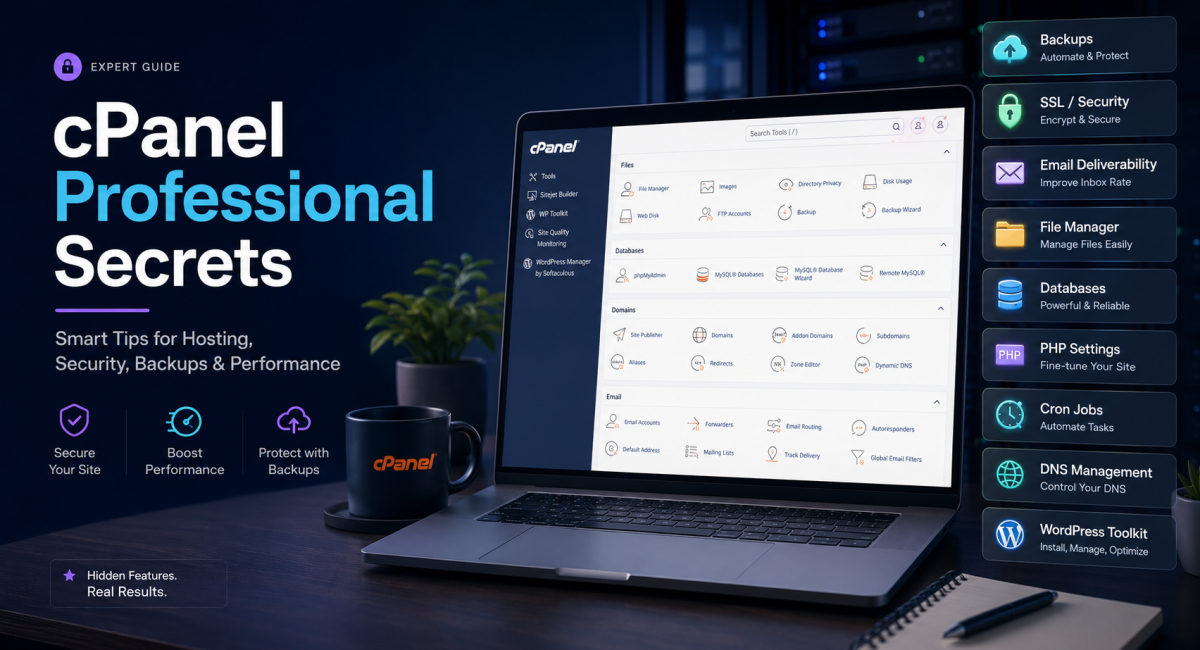
cPanel looks simple when you first open it. There are icons for files, domains, databases, email, SSL, backups, metrics and software. A beginner sees a dashboard. A professional sees a control room. The difference is not the tool itself; it is how carefully the tool is used.
This guide is about the professional “secrets” of cPanel—not tricks for breaking rules, not shortcuts that put a website at risk, and not some hidden button that magically makes a slow site fast. The real secrets are quieter than that. They are the small decisions experienced website owners make before something breaks: keeping backups in the right place, checking SSL status before launch day, reading email deliverability warnings, using the right PHP version, watching disk usage, separating domains properly, and learning when cPanel is enough and when the project needs VPS-level control.
If you run a WordPress blog, a Laravel website, an affiliate project, a news portal, an ecommerce store or a client website, cPanel can save hours. It can also create problems if you treat every button like a harmless setting. A wrong document root can expose files. A forgotten cron job can overload shared hosting. An outdated PHP version can quietly break plugins. A mailbox with poor DNS records can send your business emails to spam. None of these issues feels dramatic at first. They become dramatic later, usually when traffic starts coming in.
This article is written for people who want to use cPanel more intelligently. You do not need to be a server administrator. You do need a practical mindset. Think of cPanel as a toolbox. A hammer is useful, but not for every job. The same is true of File Manager, phpMyAdmin, AutoSSL, MultiPHP, Cron Jobs, Backup Wizard and Email Deliverability. Used carefully, these tools can make a website cleaner, faster and safer.

What cPanel Really Does Behind the Icons
cPanel is a Linux-based web hosting control panel that gives account-level users a graphical way to manage website hosting tasks. On a shared hosting account, it usually lets you manage domains, files, databases, email accounts, SSL certificates, backups, cron jobs, DNS records, PHP versions and application installers. On a server with WHM, administrators can manage accounts, packages, server security, SSL providers, backups, Apache, PHP and other system-level services.
The first professional lesson is simple: cPanel and WHM are not the same thing. cPanel is usually for the website owner or account user. WHM is usually for the server administrator or hosting provider. If you buy shared hosting, you may only have cPanel. If you buy a VPS or reseller hosting, you may have WHM plus cPanel accounts. That difference matters because many advanced settings—Security Advisor, global AutoSSL provider, EasyApache, root-level backups, account transfers and server firewall integrations—are controlled from WHM, not from your individual cPanel account.
For most website owners, cPanel is enough. You can launch a website, create email, upload files, set up databases and manage SSL without touching the command line. But cPanel does not remove responsibility. It only makes tasks easier to access. A website can still be hacked. Email can still fail. Backups can still be incomplete. The dashboard is friendly, but the consequences are real.
The Real cPanel Secrets: A Quick Professional Map
Before going deeper, here is a practical map of the cPanel areas that experienced users check most often. This table is not meant to be decorative. Use it as a maintenance checklist.
| cPanel Area | Professional Secret | Why It Matters | How Often To Check |
|---|---|---|---|
| Backup / Backup Wizard | Download your own backup before major edits, even if your host says backups exist. | Hosting backups may be delayed, partial, overwritten or subject to provider policy. | Before updates and monthly |
| SSL/TLS Status | Check all subdomains, www/non-www versions and mail-related services, not only the main domain. | A single missed certificate can create browser warnings or email/client connection errors. | After domain/DNS changes |
| Email Deliverability | Fix SPF, DKIM and DMARC before sending business email from the domain. | Poor DNS authentication can push legitimate emails into spam. | Before campaigns and after DNS migration |
| MultiPHP Manager | Set PHP version per domain or document root only after checking app compatibility. | Newer PHP can improve performance, but unsupported plugins or scripts may break. | Quarterly and before app upgrades |
| File Manager | Never edit live files without copying the original file first. | A missing bracket in PHP or Blade can take the whole site down. | Every time you edit |
| Cron Jobs | Run only what is needed, at sensible intervals, and log output when testing. | Bad cron timing can exhaust shared hosting resources or repeat failed tasks. | After deployment and monthly |
Secret 1: Backups Are Not Real Until You Can Restore Them
Many website owners say, “My hosting has backups,” and stop thinking. Professionals ask a different question: “Can I restore the exact file, database and email state I need, at the time I need it?” That question changes everything.
cPanel’s Backup interface allows users to download and store a site in a backup file and restore from a backup file when the feature is enabled by the hosting provider. cPanel’s Backup Wizard gives a more guided path for backing up or restoring all or part of a website. This is one of the most valuable tools in the whole panel, but it is often used too late.
A professional backup habit is boring, and that is why it works. Before updating WordPress, changing a theme, editing a Laravel route file, importing a SQL file, changing PHP version, removing plugins, or moving domains, take a manual backup. Download it outside the hosting account. Store one copy in cloud storage and, for serious projects, another copy on a local drive. If all backups live inside the same hosting account, a suspended account or hacked account can still leave you trapped.
Database backups deserve special attention. A website is not only files. WordPress posts, Laravel content, users, categories, product data, settings and comments usually live in MySQL or MariaDB. If you copy only public_html, you have a shell without the living content. For a content site, the database is often the heart of the business.
One good habit is to name backups clearly. Instead of downloading a file called backup.zip and forgetting what it is, rename it with the domain, date and reason: example-com-before-theme-update-2026-05-19.zip. That small detail becomes useful when something breaks at 2 a.m. and you need to find the right version quickly.
Secret 2: AutoSSL Is Helpful, But DNS Still Decides The Result
Free SSL changed the web. Today, users expect HTTPS everywhere. Search engines expect it. Browsers warn people when it is missing. In cPanel, AutoSSL can make SSL management much easier, but it is not magic.
The Manage AutoSSL documentation explains that AutoSSL can automatically install domain-validated certificates for services such as Apache, Dovecot, Exim, Web Disk and cPanel Server, depending on server configuration. The user-side SSL/TLS Status interface lets users view, upgrade or renew certificates for domains.
The professional secret is to check SSL after DNS changes. If you change nameservers, add Cloudflare, move a domain, create a subdomain, point a domain to another server, or add a www redirect, AutoSSL may need time and correct DNS to validate the domain. A common mistake is launching a site and assuming SSL is working because the main URL opens. Check the domain, www version, subdomains, mail hostname if relevant, and any parked or addon domains.
Another practical issue is mixed content. SSL may be valid, but the page can still load images, scripts or CSS over HTTP. That creates warnings or broken styling. In WordPress, this often happens after migration. In Laravel, it may happen if the app URL is still set to http in the environment file. cPanel can provide the certificate, but your application still needs to generate HTTPS URLs correctly.
Do not ignore SSL expiry notices. Auto-renewal usually works when DNS and validation are healthy, but a failed renewal can quietly become a public trust problem. For business sites, check SSL/TLS Status before campaigns, product launches or large social media pushes.
Secret 3: Email Deliverability Is More Than Creating an Email Account
A domain email address looks professional: support@example.com, hello@example.com, admin@example.com. But creating the mailbox is only the first step. Deliverability is the part many beginners miss.
cPanel’s Email Deliverability interface helps identify and fix mail-related DNS problems. Its documentation notes that DMARC requires valid SPF and DKIM records to be active. cPanel’s email guidance also explains that DKIM and SPF can help verify that email comes from a trusted sender, which can reduce spoofing and improve trust.
Here is the quiet truth: if SPF, DKIM and DMARC are not configured, your email may still send, but recipients may not trust it. Gmail, Outlook, Yahoo and business mail servers look at sender reputation and authentication. A new domain with weak authentication can land in spam, especially when sending invoices, login links, newsletters or outreach emails.
For most websites, the best workflow is to open Email Deliverability after connecting the domain. If cPanel manages your DNS, you may be able to repair records automatically. If your DNS is hosted elsewhere—Cloudflare, Namecheap, GoDaddy, Hostinger, Route 53 or another provider—you may need to copy the suggested DNS records manually. Do not guess. Copy carefully.
If you use third-party email services such as Google Workspace, Microsoft 365, Zoho Mail, Mailgun, Brevo or Mailchimp, you must combine the records correctly. The SPF record should not be duplicated as multiple SPF TXT records. It usually needs one combined SPF policy. This is one of those details that looks small but can damage email reputation for months.

Secret 4: MultiPHP Can Save a Site—or Break It
PHP version management is one of the most useful parts of modern cPanel hosting. The MultiPHP Manager lets users manage the PHP version or pool option for virtual hosts when the hosting provider enables the feature. The MultiPHP INI Editor lets users adjust PHP directives for a version, including limits and behavior settings.
The secret is not “always use the newest PHP.” The better rule is: use the newest PHP version that your application fully supports. A WordPress site with modern plugins may run well on a recent PHP release. An old theme or abandoned plugin might fail. A Laravel project may have clear PHP requirements in composer.json. A custom script from years ago might rely on deprecated functions.
Before changing PHP version, take a backup. Then check the site in a private browser window. Test forms, login, checkout, search, admin pages, image upload, cron tasks and any API integrations. If errors appear, review logs before making random changes. Professionals do not guess through production errors; they isolate the change.
PHP settings can also affect performance and reliability. Directives such as memory limit, upload max filesize, post max size, max execution time and display_errors can change how a site behaves. For example, a WordPress media upload error may be caused by a low upload limit. A Laravel import script may fail because max execution time is too short. But raising limits too high on shared hosting can annoy the provider or create resource issues. The goal is enough room for normal operation, not unlimited everything.
Secret 5: File Manager Is Convenient, But It Should Not Replace Version Control
File Manager is one of the most loved and most dangerous tools in cPanel. It is fast. You can open a file, paste code, save it and refresh the website. That is why beginners love it. It is also why websites break.
The professional way to use File Manager is cautious. Before editing a file, duplicate it. For example, before changing index.php, create index-backup-2026-05-19.php. Before editing a Blade file, copy the original. If you are editing Laravel files, never randomly change vendor files unless you know exactly why. For WordPress, never edit core files. Use child themes or plugin-specific override paths where possible.
File Manager is acceptable for small emergency edits, quick text changes, robots.txt, .htaccess adjustments, simple redirects, or checking file paths. For real development, use Git or a local workflow. A website that depends only on manual File Manager edits becomes hard to maintain. You forget which file changed. You cannot compare versions. You cannot roll back cleanly. One typo becomes a full outage.
If you must use File Manager on shared hosting, keep a change log in a plain text file: date, file path, reason, and what changed. It sounds old-fashioned. It works.
Secret 6: Document Root Mistakes Cause Many “Mystery” Problems
When adding a new domain or subdomain in cPanel, pay close attention to the document root. This is the folder from which the website files are served. If two domains point to the same folder by accident, one site can show another site’s content. If a Laravel project points directly to the project root instead of the public folder, sensitive files may be exposed unless the hosting structure is handled correctly. If a staging subdomain points to the live folder, testing can damage production.
A clean cPanel account has clean folder logic. One domain, one clear public folder. One staging site, one separate folder. One backup folder, outside the public web path when possible. Do not throw every project into public_html like a storage room. It may work for a few weeks, but it becomes confusing quickly.
For Laravel, the ideal structure depends on host limitations. On shared hosting, many users place the Laravel project outside public_html and point public_html to the public directory, or move public contents carefully while protecting app files. The key idea is that the web server should expose only public files. Environment files, storage, vendor code and application logic should not be publicly browsable.
Secret 7: phpMyAdmin Is Powerful Enough To Ruin Your Day
phpMyAdmin looks like a spreadsheet for databases, but it is not a spreadsheet. Deleting a table, truncating rows, changing collation or importing a bad SQL file can damage a live website in seconds.
The professional rule is simple: export before import. If you are going to change a database, first export the current database. If the database is large, confirm the export completed successfully. Then apply your SQL. If the SQL has INSERT statements with fixed IDs, check whether those IDs already exist. If it changes categories, posts, users or settings, read the statements before running them.
For content websites, database changes deserve the same respect as code deployments. A wrong slug can break URLs. A duplicated category can confuse archives. A bad HTML string can break a post page. A missing quote in SQL can fail the import. A character encoding issue can turn special characters into unreadable text. Slow down. Database work rewards patience.
Secret 8: Cron Jobs Should Be Quiet, Predictable and Logged
Cron jobs are used to run scheduled tasks. WordPress may use cron-like events for publishing and maintenance. Laravel uses scheduler commands. Backup scripts, queue workers, cleanup tasks and email sending scripts may also depend on scheduled execution.
The mistake is running too much, too often. A cron job every minute might be reasonable for a well-built Laravel scheduler on a capable VPS. It may be excessive on a small shared hosting plan, especially if the command is heavy. A backup cron that compresses a large directory every hour can create CPU and I/O trouble. A broken cron that emails errors every minute can flood a mailbox.
When setting up cron in cPanel, test slowly. Run the command manually if possible. Add logging during the test period. Use sensible intervals. For Laravel, a common pattern is a scheduler command every minute, but the actual tasks inside Laravel should be controlled carefully. For WordPress, avoid running multiple duplicate cron systems unless you understand the flow.
Secret 9: Resource Usage Tells The Truth Before Support Does
If your host provides resource metrics in cPanel, check them. CPU usage, memory, entry processes, I/O, inode count, disk usage and bandwidth can tell you why a site feels slow. Many users ask support, “Why is my website slow?” A professional first asks, “What resource is hitting the limit?”
High CPU may come from bots, heavy plugins, bad code, backups, image processing or database queries. High memory can come from large PHP tasks. High entry processes may show too many simultaneous requests. High inode count often means too many small files—cache files, email, backups, logs, old staging copies, or abandoned scripts.
Resource limits are not always bad. They protect shared hosting from one user consuming the whole server. But if your website constantly hits limits, you have a decision: optimize the site or upgrade hosting. Sometimes both are needed. A bloated WordPress site with ten page builders and huge images will still be inefficient on better hosting. A fast-growing store may simply need more power.
Secret 10: Security Is A Stack, Not One Plugin
cPanel security begins with account hygiene. Use a strong hosting password. Enable two-factor authentication if your provider offers it. Do not share the main cPanel login with freelancers. Create separate FTP/SFTP or application accounts when possible. Remove unused databases, users, email accounts, subdomains and old installations. Every abandoned item is a possible future problem.
On WHM-managed servers, the Security Advisor runs a security scan and advises administrators on issues it finds. Some hosts also integrate tools such as Imunify360, malware scanners, ModSecurity and firewall systems. Those tools are useful, but they are not a license to be careless.
For WordPress, cPanel’s WP Toolkit can help manage and optimize WordPress sites, and cPanel describes it as a tool for staging, cloning, updates and security-related management when enabled by the provider. It can be excellent for routine maintenance. Still, plugin choice, theme quality, admin passwords, update discipline and backups remain your responsibility.
For Laravel or custom PHP apps, security means file permissions, environment protection, updated dependencies, CSRF protection, secure sessions, HTTPS, proper storage paths, validated uploads and restricted admin routes. cPanel can host the app. It cannot automatically fix poor application design.

Secret 11: DNS Changes Need Patience And A Written Plan
DNS is where many website migrations become messy. A user changes nameservers, edits A records, adds MX records, activates Cloudflare, changes SSL settings and then wonders why the site behaves differently across devices. DNS propagation takes time, caching exists, and different records control different services.
Before changing DNS, write down the current records. Screenshot them. Export if your DNS provider allows it. Know which service handles your website, which service handles email, and which service handles DNS. These may be three different companies. For example, your domain could be at Namecheap, DNS at Cloudflare, website at Hostinger, and email at Google Workspace. In that setup, cPanel may not control everything.
The practical rule: change one major DNS layer at a time when possible. If you change nameservers and MX records and SSL mode and hosting IP all together, troubleshooting becomes harder. For business websites, avoid DNS migrations during peak sales hours or before a major campaign.
Secret 12: The Error Logs Are Often More Useful Than Guessing
When a website shows a 500 error, a blank page, a broken upload, a forbidden page or a failed PHP script, many users start changing random settings. Professionals check logs first. cPanel often provides error logs, metrics and sometimes raw access logs depending on provider configuration.
Error logs can reveal missing files, permission problems, PHP fatal errors, memory limits, syntax mistakes, denied access, plugin conflicts or bad .htaccess rules. In Laravel, logs may also appear inside storage/logs. In WordPress, debug logs can be enabled carefully. The point is not to stare at errors forever. The point is to stop guessing.
A single log line can save hours. For example, “Allowed memory size exhausted” points toward memory or plugin load. “Class not found” points toward missing dependencies or autoload issues. “Permission denied” points toward ownership or file mode. “No such file or directory” points toward a path problem. Once the error has a shape, the fix becomes less emotional.
Secret 13: Staging Is Worth The Extra Folder
Professional users do not test risky changes directly on the live site unless they have no choice. A staging site is a copy of the website used for testing updates, redesigns, plugin changes, PHP upgrades or code edits. Some hosts include staging tools. WP Toolkit may offer staging or cloning features when enabled. If no tool exists, you can still create a manual staging subdomain and copy files and database carefully.
A staging site should not be indexed by search engines. It should be password protected or blocked where appropriate. It should not send real customer emails. It should not process real payments. It exists to answer one question: will this change work before users see it?
For a blog, staging may feel unnecessary. For a business website, ecommerce store or client project, it is one of the habits that separates professionals from improvisers.
Secret 14: Cache Can Hide Both Problems And Improvements
Caching improves speed by storing ready-made output. It can happen in WordPress plugins, Laravel config/view caches, browser cache, CDN cache, server cache, LiteSpeed cache, Cloudflare cache and application-level cache. This is useful, but it also causes confusion.
After editing a file, you may not see the change because cache is still serving the old version. After fixing a problem, the error may appear because the browser cached it. After changing CSS, mobile may still show the old layout. The professional habit is to clear the right cache, not every cache blindly.
Know your cache layers. If your site uses Cloudflare, purge Cloudflare cache for static assets when needed. If it uses WordPress LiteSpeed Cache, clear the plugin cache. If it uses Laravel, clear config, route, view or application cache when deployment requires it. If it is only a browser cache problem, test in incognito mode or another device.
Secret 15: cPanel Is Not Always The Best Place To Do Everything
cPanel is excellent for many hosting tasks, but not every task belongs there. Large backups may be better handled by server-level tools or external backup services. High-volume email marketing should not be sent from shared hosting mailboxes. Large apps with workers, queues and real-time services may need VPS or cloud infrastructure. High-security projects may require stricter access control than a basic shared account can provide.
This is not a criticism of cPanel. It is a matter of fit. cPanel is like a well-organized workshop. It is not a factory. For a small to medium website, it can be ideal. For complex SaaS, heavy ecommerce, high traffic publishing, large background processing or strict compliance requirements, you may need a stronger architecture.
Professional cPanel Setup Checklist
Use this checklist when launching a new website from cPanel. It is simple enough for beginners, but it reflects how experienced users think.
| Step | Action | Result You Want |
|---|---|---|
| 1 | Connect domain and verify document root | Correct folder serves the correct website |
| 2 | Check SSL/TLS Status and force HTTPS carefully | No browser security warning |
| 3 | Create database and user with a strong password | Application can connect without exposing credentials |
| 4 | Set PHP version and required extensions | App runs on supported PHP environment |
| 5 | Configure email deliverability records | Domain email is less likely to land in spam |
| 6 | Create a manual backup after first working setup | Clean restore point exists |
| 7 | Review security, passwords and unused accounts | Smaller attack surface |
Common cPanel Mistakes That Professionals Avoid
The first mistake is keeping old websites inside the account. A forgotten WordPress install in a subfolder can become the entry point for malware. If you no longer use a script, remove it or archive it offline. Do not keep old projects online “just in case.”
The second mistake is saving backups inside public_html. If a backup file is publicly accessible, anyone with the link may download your code, database or configuration. Keep backups outside public folders when possible, and download copies to a safer location.
The third mistake is using weak database passwords because “nobody can see them.” Attackers do not need to see everything the way you do. They exploit weak code, exposed files, infected plugins and stolen credentials. Use strong database passwords and protect configuration files.
The fourth mistake is ignoring email authentication. A business domain without proper SPF, DKIM and DMARC looks unfinished to receiving servers. If your website depends on contact forms, invoices, reset links or newsletters, email deliverability deserves real attention.
The fifth mistake is treating .htaccess like a playground. One wrong rewrite rule can create redirect loops, 403 errors, broken assets or SEO problems. Copy the original file before editing and document changes.
Best cPanel Workflow For WordPress
For WordPress users, cPanel is useful, but WordPress has its own internal logic. Start with a clean installation. Activate SSL. Set the preferred URL version. Install only necessary plugins. Remove unused themes. Configure backups. Check email deliverability if the site sends mail. Use WP Toolkit if your provider enables it. Update carefully, especially before major WordPress or PHP changes.
Do not install five security plugins because fear tells you more is safer. Overlapping security plugins can slow a site or conflict with each other. A better approach is one good security setup, clean updates, strong passwords, login protection, backups and careful plugin selection. A site with fewer high-quality plugins is often easier to maintain than a site full of “maybe useful” tools.
Best cPanel Workflow For Laravel and Custom PHP
Laravel users need a slightly different mindset. The web root should point to the public directory. The .env file must not be public. Storage permissions must be correct. Composer dependencies should be handled carefully. Cron should run the scheduler only if needed. Queue workers may not be suitable for all shared hosting environments. If the project needs long-running workers, real-time sockets, heavy jobs or SSH-based deployment, a VPS may be more appropriate.
For small Laravel projects on shared hosting, cPanel can work well when the host supports the required PHP version, extensions and database access. For larger projects, plan migration early. Do not wait until the site is busy and unstable.
When You Should Upgrade Beyond Shared cPanel Hosting
Shared cPanel hosting is comfortable, but every plan has limits. Consider upgrading to cloud hosting or VPS when your site repeatedly hits resource limits, needs custom server packages, runs background workers, receives high traffic, handles sensitive customer transactions, or requires better isolation.
A good upgrade is planned, not forced. If your site starts growing, monitor resource usage and traffic patterns. Optimize images, caching, database queries and plugins first. If limits remain, move to a stronger plan. The worst time to plan migration is during a traffic spike or after a provider suspension.
Final Thoughts: The Real Secret Is Discipline
The professional secret of cPanel is not hidden in one icon. It is discipline. Back up before changes. Check SSL after DNS moves. Fix email authentication before sending business messages. Choose PHP versions carefully. Keep file edits reversible. Use logs before guessing. Remove old scripts. Watch resources. Test risky changes away from the live site.
cPanel is popular because it makes hosting manageable. That is its strength. But the dashboard does not replace judgment. The people who get the best results from cPanel are not always the most technical users. They are the users who build routines. They document changes. They check the boring things. They know that a website is not “set and forget.” It is a living system.
If you treat cPanel as a professional control panel instead of a random collection of icons, it becomes one of the most useful tools in web hosting. It can help you launch faster, recover safer, send cleaner email, manage better SSL, understand resources and keep your online project under control. That is not flashy. It is better than flashy. It works.